Smart TVs have become more like small computers than traditional televisions. They run operating systems, connect to the internet, store temporary files, install applications, and regularly receive software updates. Because of this, it is normal for an occasional app to freeze or take longer to load.
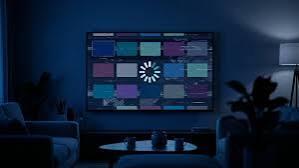
The problem becomes frustrating when apps keep freezing, crashing, showing a loading circle, or suddenly returning to the home screen.
The good news is that a frozen Smart TV app does not automatically mean your television needs a hardware repair. In many cases, the cause is something simple, such as an unstable internet connection, outdated software, corrupted app data, or a temporary software glitch. Manufacturers such as Samsung, LG, TCL, and Sony recommend several troubleshooting steps before moving toward a larger reset.
So, should you repair your TV or reset it?
The answer depends on what is actually causing the freezing.
Why Do Smart TV Apps Keep Freezing?
There are several possible reasons an app may stop responding. Identifying the pattern can help you avoid unnecessary repairs or a factory reset.
1. Weak or Unstable Internet
Streaming apps depend heavily on your internet connection. Even if the TV shows that it is connected to Wi-Fi, the connection may still be unstable.
For example, an app might open normally but freeze when you start a 4K movie. Videos may repeatedly buffer, menus may load slowly, or the app may become unresponsive.
LG specifically recommends checking the TV’s network connection and testing the television on another network, such as a smartphone hotspot, when apps are not loading properly.
If the app works normally through a different connection, your TV may not need repair at all. The problem could be related to your router, Wi-Fi signal, or internet service.
2. Outdated TV Software
Smart TV manufacturers regularly release firmware updates. These updates can improve compatibility, fix bugs, and address problems with applications.
If your TV has not been updated for a long time, an application may eventually behave incorrectly after receiving a newer version.
Check the software update section in your television’s settings. Menu names differ between brands and models, so it is better to follow instructions for your exact TV.
3. Corrupted App Data or Cache
Apps save temporary information to make loading faster. Sometimes this stored information becomes corrupted.
A damaged cache can cause an app to:
- Freeze during startup
- Stop responding
- Crash back to the home screen
- Show a permanent loading screen
- Behave differently after an update
Clearing the cache, when your TV provides that option, is generally less disruptive than performing a complete factory reset. Some platforms may instead require removing and reinstalling the application.
One App Freezing vs. Every App Freezing
This is one of the most useful tests you can perform.
Suppose Netflix freezes but YouTube, Prime Video, and other applications work normally. In that situation, the problem may be specific to Netflix, its stored data, your account, or the service itself.
On the other hand, if almost every application is freezing, the problem could be broader.
Possible causes include:
- Internet connectivity
- Outdated TV firmware
- Limited storage
- Temporary system software problems
- Excessive background processes
- Overheating
- A problem with the TV’s internal hardware
TCL also recommends trying another application when diagnosing a problem. If several apps are affected, the issue may not be limited to one particular application.
What Should You Try Before Resetting the TV?
A factory reset should usually not be your first step.
Start with simple troubleshooting.
Step 1: Close and Reopen the App
Exit the frozen application and open it again.
If the app is completely stuck, use the TV’s force-stop option if one is available. Android TV and Google TV devices, for example, provide app management options that can force an application to stop.
Step 2: Restart the TV
A proper restart can clear temporary software problems.
Depending on your model, you may be able to select Restart from the power menu. Another option recommended for some TVs is disconnecting the television from power for a short period and then turning it back on.
Samsung specifically recommends a cold boot as one of its early troubleshooting steps for applications that freeze, fail to load, or crash.
Step 3: Restart Your Router
If several apps are buffering or freezing, restart your modem or router as well.
Give the network equipment time to reconnect before testing the TV again.
If possible, compare the TV’s performance over Wi-Fi with a wired Ethernet connection. A wired connection can help determine whether wireless signal quality is contributing to the problem.
Step 4: Check for Updates
Look for updates for both:
- The television’s operating system
- The affected application
Do not assume that updating only the app is enough. Compatibility between the app and the TV’s software can also matter.
Step 5: Clear Cache or App Data
If your TV provides a cache option, clearing it can be a useful next step.
Be careful when selecting Clear Data, however. Depending on the TV platform, this may remove saved login information, preferences, or locally stored app information.
You may need to sign in again afterward.
When Should You Consider a Factory Reset?
A factory reset takes troubleshooting much further.
It restores the television’s software environment to its initial state and can remove installed applications, accounts, network settings, preferences, and other customized information.
That makes it useful when persistent software problems remain after simpler fixes.
However, a factory reset should be considered a last-resort software troubleshooting step, not the first response to a single frozen app. Samsung, for example, places resetting Smart Hub after steps such as cold booting, updating software, and reinstalling the application.
Before performing a reset, make sure you know your streaming account passwords and understand which settings will be removed.
When Is It More Likely to Be a Hardware Problem?
Sometimes repeated app freezing is a symptom of a deeper television problem.
You should pay closer attention if the TV has additional symptoms such as:
- The entire TV becomes unresponsive
- The screen freezes even outside applications
- The TV repeatedly restarts
- The television turns off unexpectedly
- Menus are extremely slow
- Several built-in functions stop working
- The TV becomes unusually hot
- Apps continue freezing after updates and a factory reset
- The TV has other picture or sound problems
If applications freeze but the rest of the television works normally, software and network troubleshooting should come first.
If the entire TV is behaving abnormally, professional diagnosis may be more appropriate.
For homeowners looking for TV repair in Saskatoon, diagnosing the cause before replacing parts is important. A technician can help determine whether the problem is related to software, power, the main board, storage, cooling, or another internal component.
Could an Older Smart TV Be the Problem?
Yes, age can sometimes play a role.
Smart TV platforms are not identical to modern smartphones or computers. Older televisions may have limited processing resources, and application developers may eventually change the requirements of their software.
An older TV can therefore become slower over time even when it still displays regular television channels perfectly.
If the built-in Smart TV system has become unreliable, an external streaming device can sometimes provide an alternative way to access streaming services through HDMI. This does not repair the television’s internal Smart TV platform, but it can help determine whether the issue is specifically related to the built-in software.
If other television functions are also malfunctioning, however, adding a streaming device may not address the underlying problem.
A Simple Test to Identify the Cause
Before resetting or repairing your TV, try this simple diagnostic process:
Test 1: Open another streaming app.
If only one app freezes, investigate that application first.
Test 2: Test the same service on your phone or computer.
If the service also has problems elsewhere, the issue may not be your television.
Test 3: Restart the TV.
Then test the app again.
Test 4: Check the network.
Try another Wi-Fi network or a phone hotspot if practical. If the app works there, investigate your home network.
Test 5: Update the TV and application.
Install available updates and restart the television.
Test 6: Clear cache or reinstall the affected application.
This can remove damaged local app information.
Test 7: Consider a factory reset.
Only move to this step after the less disruptive solutions have failed.
Test 8: Consider professional diagnosis.
If the TV continues freezing across multiple applications and other functions are also affected, the issue may require hardware inspection.
Should You Repair or Reset?
The answer depends on the symptoms.
If one application freezes while everything else works, start with the application, account, network, update, cache, or reinstall.
If several applications freeze, investigate the network, TV software, storage, and overall system performance.
If the entire television becomes slow, freezes outside apps, restarts, overheats, or shows additional picture and sound problems, professional diagnosis may be appropriate.
A factory reset can solve certain software problems, but it should not be treated as a universal repair. It cannot fix a failing power supply, defective main board, damaged cooling system, or other physical component.
For persistent problems that remain after normal troubleshooting, professional TV repair services in Saskatoon can help identify whether the issue is software-related or requires internal inspection.
Final Thoughts
Smart TV apps freezing can be annoying, but it does not automatically mean your television is broken.
Start by identifying whether one application or multiple applications are affected. Then check the internet connection, restart the TV, update its software, clear the affected app’s cache when possible, and reinstall the application if necessary.
A factory reset can be useful when software problems continue, but remember that it removes many personalized settings and account details.
If freezing continues even after these steps—or if your TV has other symptoms such as random restarts, overheating, picture problems, or system-wide slowdowns—the next step should be proper diagnosis rather than repeatedly resetting the television.
For Saskatoon homeowners, understanding the difference between an app problem, network problem, software problem, and hardware problem can save both time and unnecessary troubleshooting.